Status Bar
The LCD screen displays the camera status bar.

The Status Bar contains the following button and icons:
-
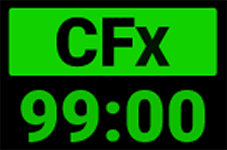 CFexpress Status Icon
 -
 Temperature / Exposure Icon
 -
 Timecode Icon
 -
 Genlock Icon
 -
 SYNC Icon
 -
 Camera Status Icon
 -
 Network Activity Icon
 -
 LCD Lock Icon
 -
 Wi-Fi Icon
 -
 Network Icon
 -
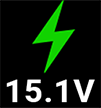 DC-In Icon
 -
 Battery Icon
|
|
||
|
This icon displays the status of the CFexpress media card, and the recording time remaining for the current camera settings. The status displayed includes:
|
|
This icon displays the temperature (T) and exposure (E) calibration indicators. • When the T is yellow or red, it indicates that the camera's current temperature is too far from calibrated temperature. Make sure that the camera has been on for 5-10 minutes, and then recalibrate it if T remains yellow or red. • When E is yellow or red, it indicates that the camera requires sensor re-calibration at the current shutter speed. Refer to Calibrating the Sensor. |
|
|
||
|
This icon indicates the state of the Timecode generator connection.
|
|
This icon indicates the state of the SDI video output relative to an external Genlock source.
|
|
|
||
|
This Icon indicates the state of the camera sensor relative to external synchronization sources.
|
|
This icon indicates the state of the camera hardware. The different icons and their corresponding status include:
|
|
|
||
|
This icon indicates the state of FTPS or Cloud data transfer.
|
|
This icon indicates the state of the LCD Lock. The states include:
|
|
|
||
|
This icon indicates the state of Wi-Fi connection.
|
|
This icon indicates the state of the network connection.
|
|
|
||
|
This icon indicates the state of DC power connection.
|
|
This icon indicates the state of the battery connection and charge level. When the voltage is low, it displays the voltage in red.
|
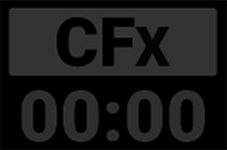 Missing
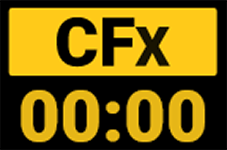 Incompatible
 Red indicates that the selected Timecode Source is not present, or not jammed in the last 12 hours.
 White indicates that the selected Timecode source is not currently connected but was jammed during the current camera boot.
 Yellow indicates that the selected Timecode source has not been jammed in current camera boot but has been within the last 12 hours, or that timecode source is cross-jammed (at a different
 Green indicates that the SDI outputs are locked to the external Genlock signal.
 Red indicates that the SDI outputs are not locked to the external Genlock source. Make sure that the SDI Frequency matches, or is an interval of, the Genlock source.
 Gray indicates that no synchronization sources are detected.
  Green indicates that the camera sensor is synchronized to both external Timecode and Genlock.
 Yellow indicates that the camera sensor is synchronized to an external Genlock source and an external Timecode is not present.
 Red indicates that the camera sensor is not synchronized to the external Genlock source. Make sure that the Camera Sensor Rate matches, or is an interval of the Genlock source.
 Good: Camera operating as expected.
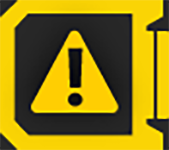 Attention Required: Camera is nearing overheated state.
 Overheating: Camera has reached temperature threshold and shut down is imminent.
 Shutting Down: Camera is shutting down due to overheating.
 Green indicates that the camera is transferring FTPS or Cloud data.
 Gray and open indicates that the camera LCD is unlocked.
  White and closed indicates that the camera LCD is locked.
 White antenna indicates that Wi-Fi signal is broadcasting (Ad-hoc).
 Green indicates that the camera is connected to a network.
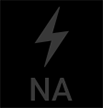 Gray with gray NA indicates that no DC power is connected.
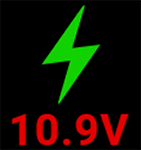 Green with flashing red voltage numbers indicates low DC power. The low power warning threshold is defined in the System Settings>Power menu.
 Yellow indicates 10 minutes of power remaining.
  Red indicates less than 5 minutes of power remaining.
 Gray question mark indicates no communication with the attached battery, and it is not being used as the camera's power source.
 White question mark indicates no communication with the attached battery, and it is being used as the camera's power source.
 Grey exclamation point flashing indicates low power threshold has been met. When solid, battery has faulted.